
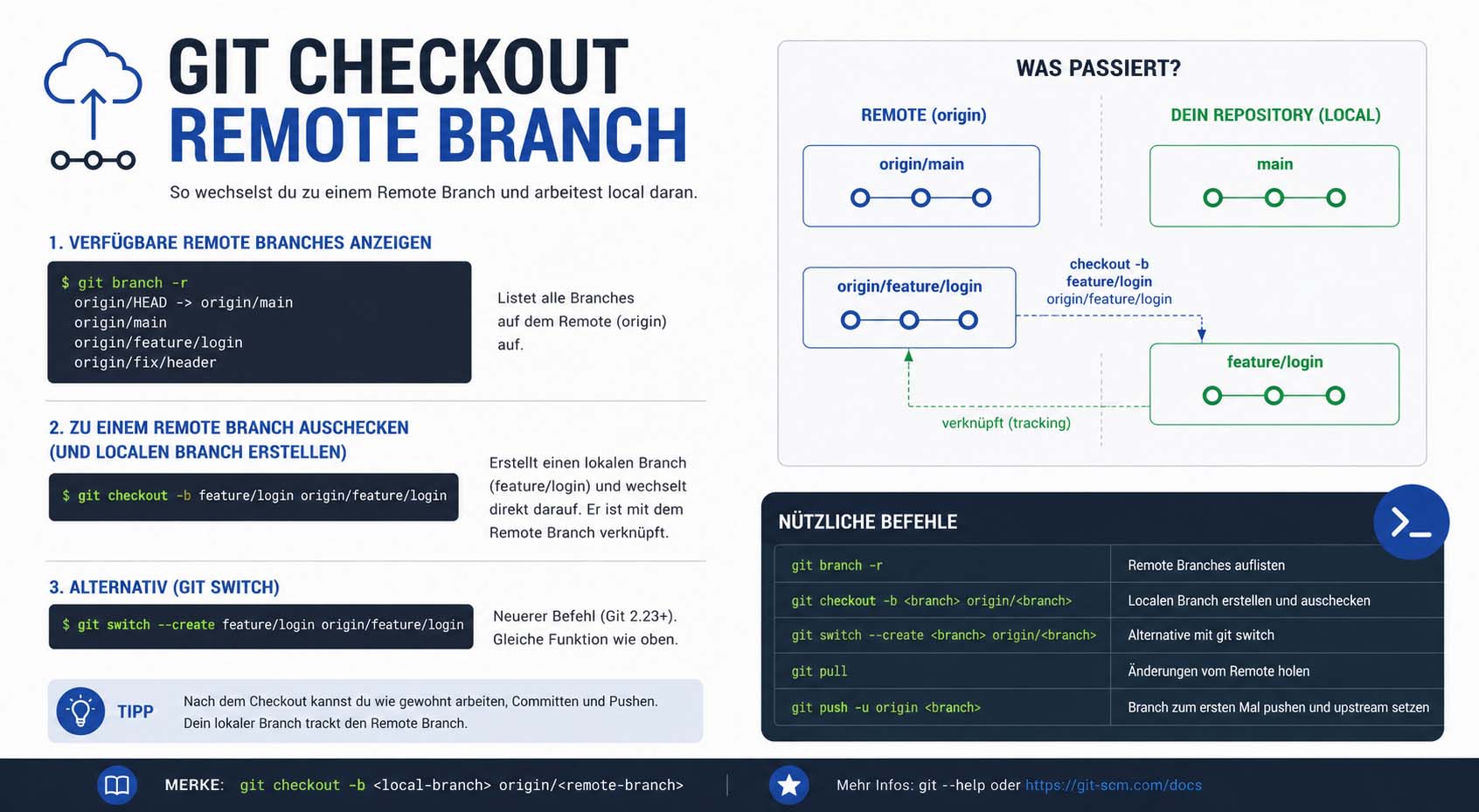
Git checkout remote branch is one of the most common tasks in modern software development. For example, developers in teams often need to work on branches that other people created on GitHub, GitLab or Bitbucket. Therefore, knowing how to switch to these branches the right way helps with teamwork, testing and clean workflows.
Git is a distributed version control system that Linus Torvalds created. It lets developers manage project history and work together from different places. Also, one of its strongest features is branch management, because it lets many developers work on different parts of a project at the same time.
As projects grow, developers also need to understand ideas like the reverse engineering meaning, especially when they study existing code or maintain older apps.
Understanding Remote Branches in Git
A remote branch lives on a remote repository instead of your own computer. Your teammates share these branches, and you can reach them after you fetch updates from the server.
Git usually adds the remote name in front of the branch name, like this:
origin/feature-loginHere, origin stands for the default remote repository, while feature-login is the actual branch name.
Git Checkout Branch From Remote
The process of git checkout branch from remote usually starts with fetching updates. In this way, your computer gets the latest list of all available branches.
First, most developers run this command:
git fetchThis command downloads updates from the remote repository. However, it does not change the branch you are working on.
Next, you can list the remote branches with:
git branch -rYou may see output like this:
origin/main
origin/development
origin/feature-login
Once you spot the branch you need, you can create a local copy that links to it:
git checkout -b feature-login origin/feature-loginThis command creates a local branch called feature-login. At the same time, it starts tracking the remote version for you.
Teams use this method all the time when they share one repository.
Checkout Remote Branch Git
The phrase checkout remote branch git means moving your local workspace to a branch that lives on the server. Fortunately, Git makes this easy with smart tracking features.
Modern Git versions also accept a shorter command:
git checkout feature-loginIf the branch exists on one remote but not on your computer, Git creates the tracking branch for you. In fact, the official Git documentation for git-checkout explains this guessing feature in detail.
Newer Git releases also offer the switch command:
git switch feature-loginYou can also create the branch straight from the remote:
git switch -c feature-login origin/feature-loginThe switch command keeps growing in popularity. Still, many developers prefer the older checkout workflow, since guides cover it widely and it works with older systems.
Developers who use cloud repositories run these commands many times a day. This is especially true in agile teams, where people create and merge feature branches all the time.
Why Remote Branches Matter
Remote branches improve teamwork and keep software projects organized. Instead of pushing unfinished work straight to the main branch, developers can keep their changes separate and safe.
For instance, a team might keep one branch called feature-payment, another called bugfix-login and a third called testing-ui. Reviewers can check each branch on its own before anyone merges it into the main production branch.
As a result, this workflow cuts down on conflicts and lowers the chance of breaking the app. It also helps project managers and reviewers inspect changes carefully before release.
Many teams also follow verification vs validation practices before merging code. That way, new features meet both technical needs and user expectations.
For these reasons, switching to shared branches sits at the heart of team development.
Git Checkout a Remote Branch
Knowing how to git checkout a remote branch helps most when you join an existing project. Imagine you clone a repository for the first time. After cloning, you may only see the default branch on your computer.
To reach the other remote branches, you would usually run these commands:
git clone repository-url
cd project-folder
git fetch --all
git branch -rThen, you can switch to the branch you want:
git checkout -b testing origin/testingThis creates a local branch named testing that connects to the remote tracking branch.
Git also saves tracking information, so future pulls and pushes sync with the correct remote branch on their own.
Common Problems With Remote Branch Checkout
Git is powerful, but beginners sometimes run into problems with remote branches. One common error looks like this:
pathspec did not match any file(s) known to gitThis error usually means Git has not fetched the branch information yet. In most cases, running this command fixes it:
git fetch --allAnother common problem happens when your local branch name clashes with an existing branch. In that case, you may need to delete or rename the local branch first.
Sign-in issues can also appear when a repository requires SSH keys or access tokens. GitHub Docs and other platform guides explain how to set up this kind of access.
Similarly, if your project uses a database, you should learn how to fix slow MySQL queries, because slow backends can hold up the whole development workflow.
Git Checkout Remote Branch Command
Every developer who uses Git should know the git checkout remote branch command. However, the exact command changes a little depending on the situation.
The most common format is:
git checkout -b local-name origin/branch-nameHere is a real example:
git checkout -b feature-search origin/feature-searchThis command does three jobs at once. It creates a new local branch, links it to the remote one and moves your working folder to that branch.
Another useful option is:
git checkout --track origin/feature-searchThis option creates a local branch with the same name and sets up tracking too.
Developers often use these commands when they review pull requests, test new features or fix bugs that teammates report.
Best Practices for Working With Remote Branches
Good habits make remote branches much easier to use. First of all, fetch updates often so you never work with old information.
Secondly, choose clear branch names such as feature-user-authentication, bugfix-payment-error or hotfix-security-patch. Clear names make teamwork easier and keep the repository tidy.
Before you switch branches, commit or stash any unfinished changes to avoid conflicts. Git offers the stash command to save your work for a while:
git stashAfter you switch, you can bring those changes back with:
git stash popIn addition, teams that run large apps often watch performance analytics to spot slow areas before they release changes.
On Linux machines, knowing what is a swap file can also help you fix memory problems during large builds or when many tools run at once.
Overall, these habits reduce mistakes and make branch switching much safer.
Conclusion
In short, learning to git checkout remote branch is a key skill for anyone who works with shared repositories. Whether you join a new project, review a teammate’s code or test features, it keeps your workflow smooth. Finally, when you pair it with good version control habits, testing and database care, you can build more reliable software.